Most floor plans I see from students look like the model is still under construction. Section tags everywhere, every riser line on every stair, walls that read as two thin lines with nothing between them. The fix isn’t more drafting. It’s a handful of Visibility/Graphics settings, saved once as a view template, so every plan in the set gets the same look without you touching it again.
Poché the walls in VG, not with Override Graphics
The way most people learn to blacken walls is to select one, hit the little paintbrush on the Modify tab (Override Graphics in View), and set the cut pattern to a solid black fill. It works. But it’s stuck to that view and those elements, and it can’t go into a template. So Ctrl+Z that.
Type VG on the keyboard instead, or go View tab → Visibility/Graphics. In Model Categories, press W to jump down to Walls, then click Override under Cut Patterns. Set the background pattern to Solid fill and the colour to black. I always put solids in the background and hatches in the foreground, so leave the foreground alone here. Click OK and the walls are poché’d in this view, and now the setting is something a template can carry.
A grey floor that reads against the sheet
You’ll notice the floor in my plan is a shade darker than the paper. That isn’t done in VG. I selected the floor, Edit Type → Edit Structure, went to the top finish layer (oak flooring in this case) and opened its material. Under Graphics, the Surface Pattern is what matters, because in plan you’re looking down at the floor, not cutting through it. Projection pattern, not cut pattern.
Foreground: wood boards, parallel, in a 160 grey rather than black so the hatch sits back. Background: solid, 240 grey (RGB 240, 240, 240). That tiny difference is enough to separate the floor from the white sheet without it looking heavy.
Turn off the clutter
VG again. Under Annotation Categories, uncheck Sections and Elevations. For a presentation plan you don’t want the tags. That alone cleans up a lot.
Then stairs. Back in Model Categories, press S, find Stairs, and expand the plus sign next to it. I turn off the Above riser lines, the riser lines in general, the Above supports, and the nosing lines. Click OK and the stair goes from a hairball to a few clean treads. Do the same for Railings: expand it and turn off everything marked Above. It’s unnecessary linework and it makes the stair look cluttered.
Save it as a template
View tab → View Templates → Create Template from Current View. Name it something you’ll find later (mine is just View Template Floor Plan). Here’s the part that catches people: creating the template from the current view does not apply it to the current view. Go to Properties, click the View Template field where it says None, and pick the one you just made.
While that dialog is open, uncheck a few of the Include boxes so those properties stay editable in each view: View Scale, Detail Level, Model Display, View Range and Phase Filter. Model Display is the one I care about most, because that’s how you flip a view to wireframe when you need to see inside something. I keep plans in Hidden Line, but I want to be able to switch.
VG is locked now, so edit the template instead
Type VG in a templated view and everything’s greyed out. That’s the template doing its job. To change anything, click the template name in Properties and open V/G Overrides Model. Same dialog, just buried one level down.
Open the second plan, apply the same template, and you’re most of the way there. In my case a sloped roof was coming through the cut, so in the template’s Model Categories I held Ctrl and selected both Ceilings and Roofs, then gave their cut pattern the same solid black background. Now the roof cut reads as poché too.
Shadows, if you want them
I keep shadows off on construction drawings and on for presentation plans. In the template, turn on Cast Shadows and Show Ambient Shadows, then open Lighting. I set the three lighting sliders to 90, 50, 10, something I picked up from The Revit Kid about fifteen years ago. For the sun, go Single Day, June, and around 1 PM. I typed AM the first time and wondered why the shadows looked wrong. Check that each plan is on the same sun setting, or uncheck Lighting in the template if you find yourself adjusting it per view. And be aware the shadows are a bit odd at a plan cut, since the model is sliced at the cut plane, but they add some depth to the stairs and openings.
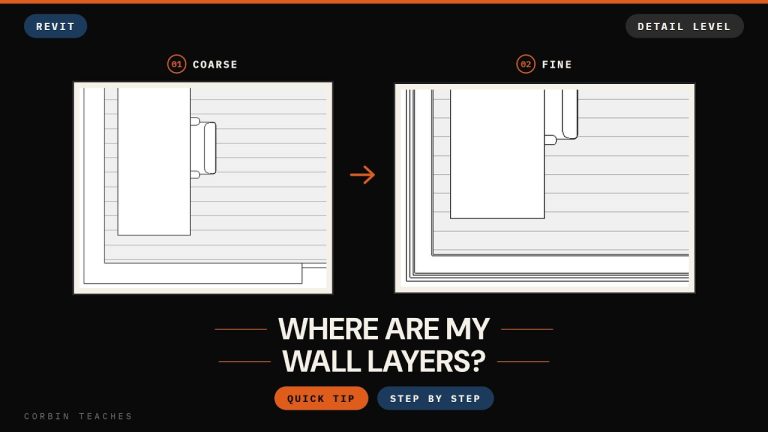
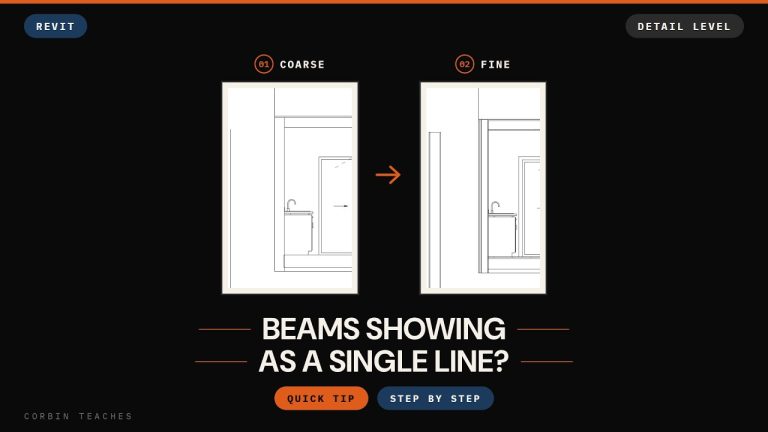
If you want the walls themselves to show their layers instead of a solid fill, that’s the Detail Level setting, which I cover in the wall layers and steel beams quick tips.
━━━━━━━━━━━━━━━━━━━━━━
🔗 RESOURCES
━━━━━━━━━━━━━━━━━━━━━━
📐 Notion Business OS for Architects (free + paid templates): https://cpd.gumroad.com/l/civaw
📐 Free Notion Issue Tracker for Architects: https://cpd.gumroad.com/l/cjlls
🌐 More Revit tutorials: https://corbinteaches.com
━━━━━━━━━━━━━━━━━━━━━━
CHAPTERS
━━━━━━━━━━━━━━━━━━━━━━
0:00 The goal: a clean presentation plan
0:38 Override Graphics vs Visibility/Graphics
1:27 Poché walls in VG
2:09 Grey floor fill through the material
3:24 Hide sections, elevations, stair and railing lines
4:46 Create a template from the current view
6:37 Apply it to another plan and poché the roof
7:32 Shadows and sun settings
━━━━━━━━━━━━━━━━━━━━━━
CONNECT
━━━━━━━━━━━━━━━━━━━━━━
Subscribe: https://bit.ly/3VFqR86
Instagram: https://bit.ly/3J8l6Io
Architecture work: https://bit.ly/3VPUnrJ