You place a camera in a plan, click into white space, and it’s gone. The 3D view is still in the Project Browser, but the camera you’d drag to change the angle isn’t in the plan anymore. Most people fix this the long way round. There’s a right-click that does it in one step.
Place the camera
Go to a Level 1 plan, View tab, open the 3D View dropdown and pick Camera. Click once for the eye position and again for the target. I deliberately put mine tight against the building and pulled the target just past it, so the resulting view is cramped and needs adjusting. You could drag the crop region in the 3D view to widen it, but that only changes the frame, not where the camera stands.
Where the camera went
Right after placing it, the camera is still selected in the plan and you can grab it and pull it back. Click anywhere in empty space and it disappears. The old way to get it back is to open the 3D view, click the crop boundary so the view is selected, then return to the plan, where the camera reappears while that selection holds. It works, but it’s a lot of clicking.
Right-click the view: Show Camera
In the Project Browser, right-click the 3D view and choose Show Camera. The camera drops back into whatever plan you have open. Drag the eye point back, widen the far clip, spin the target, whatever the view needs. Open the 3D view again and it’s updated with the new position.
Same trick for section boxes
Say you want that perspective to cut into the building. In the 3D view, tick Section Box in Properties. Now go back to Level 1 and right-click the same view in the Project Browser, and this time choose Show Section Box. The box shows in plan, and you can drag its edges into the building the same way you would in 3D. Open the camera view and you’re looking at a cut perspective through the rooms.
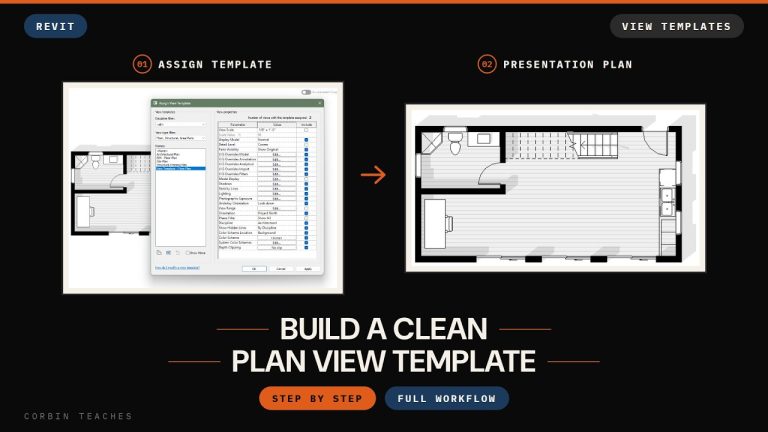
Two right-clicks, and you have full control of a camera view from plan, which is where it’s easiest to judge the angle anyway. If you want those perspectives to look presentable, the clean plan view template video covers the graphics side.
━━━━━━━━━━━━━━━━━━━━━━
🔗 RESOURCES
━━━━━━━━━━━━━━━━━━━━━━
📐 Notion Business OS for Architects (free + paid templates): https://cpd.gumroad.com/l/civaw
📐 Free Notion Issue Tracker for Architects: https://cpd.gumroad.com/l/cjlls
🌐 More Revit tutorials: https://corbinteaches.com
━━━━━━━━━━━━━━━━━━━━━━
CHAPTERS
━━━━━━━━━━━━━━━━━━━━━━
0:00 Editing a 3D camera view
0:20 Place a camera
0:45 Where did the camera go?
1:08 Right-click the view: Show Camera
1:35 Add a section box
1:51 Right-click the view: Show Section Box
━━━━━━━━━━━━━━━━━━━━━━
CONNECT
━━━━━━━━━━━━━━━━━━━━━━
Subscribe: https://bit.ly/3VFqR86
Instagram: https://bit.ly/3J8l6Io
Architecture work: https://bit.ly/3VPUnrJ